Docker containers
The Docker section of a server appears when Docker is installed. Its first page lists the containers. Portway runs the docker command on the server, so it shows exactly what docker ps and docker inspect report.
Reading the list
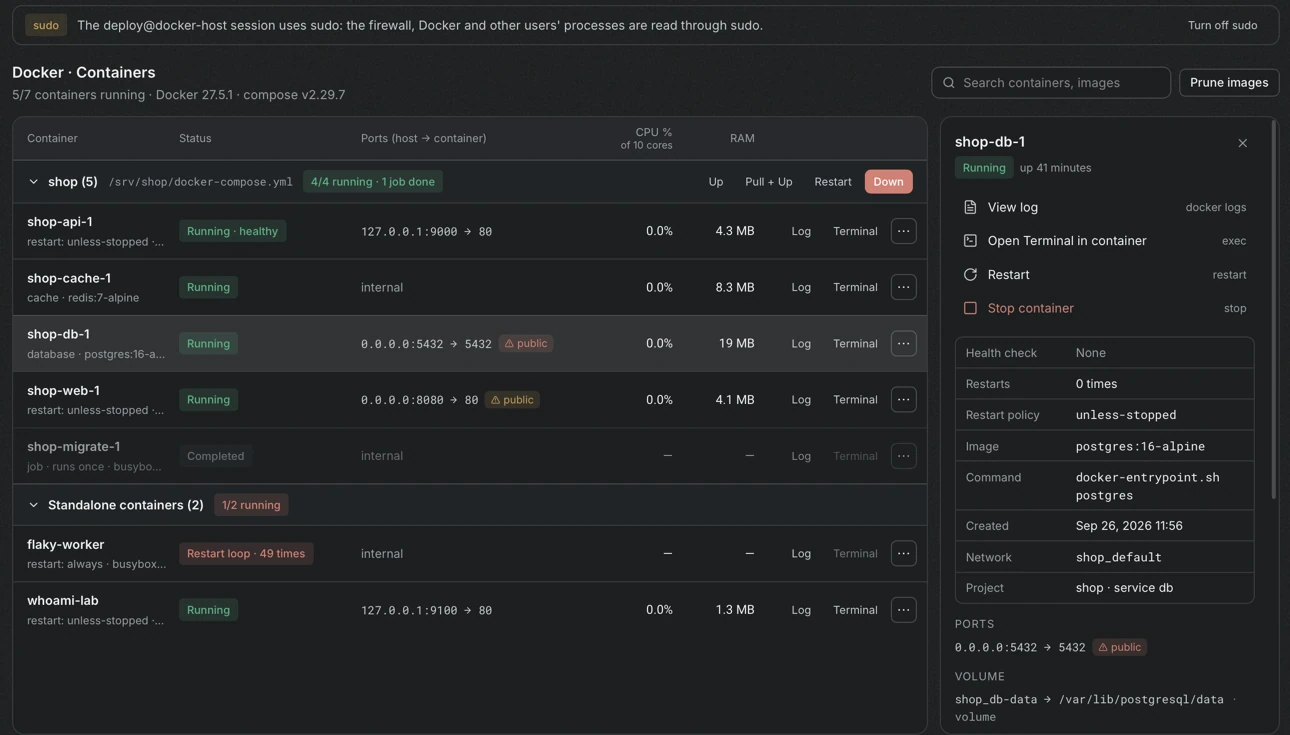
Section titled “Reading the list”Containers are grouped by Compose project, followed by the group Standalone containers for those that were started with docker run. Each group header counts how many containers run.
| Column | Content |
|---|---|
| Container | The name, the restart policy and the image |
| Status | The state and, when the container has a health check, its result |
| Ports (host → container) | The published ports. Ports that are open on every address are marked public |
| CPU % and RAM | The current use. CPU is shown against the number of cores |
Status values include Running, Running · healthy, Running · unhealthy, Completed for a job that ran once, Stopped · exit N, Failed · exit N and Restart loop · N times. The restart loop mark finds containers that start and crash again and again.
A port that is open on all addresses is flagged with an explanation. Docker adds its own iptables rules, so ufw cannot block such a port. A database or cache should be bound to 127.0.0.1 instead. Firewall shows how to fix this.
Details of a container
Section titled “Details of a container”Select a row to open the panel on the right. It shows the status and the health check, the ports, the mounted volumes, the environment variables, the number of restarts, the command and the creation time. Environment variable values are hidden until they are clicked, because they often contain secrets.
Actions
Section titled “Actions”| Action | Effect |
|---|---|
| Log | Opens the log viewer for the container |
| Terminal | Opens a terminal on this computer that runs docker exec -it in the container |
| Restart | Restarts the container |
| Stop | Stops the container |
| Start and Run again | Starts a stopped container, or runs a one-time job again |
| Open tunnel to port | Creates a tunnel to a published port |
Restart, stop and run again ask for confirmation. The dialog names the role of the container, for example a database, and warns that dependent containers can fail while it restarts. Running a job again warns that the task runs with the same image and environment, so it must be safe to repeat.
The log viewer
Section titled “The log viewer”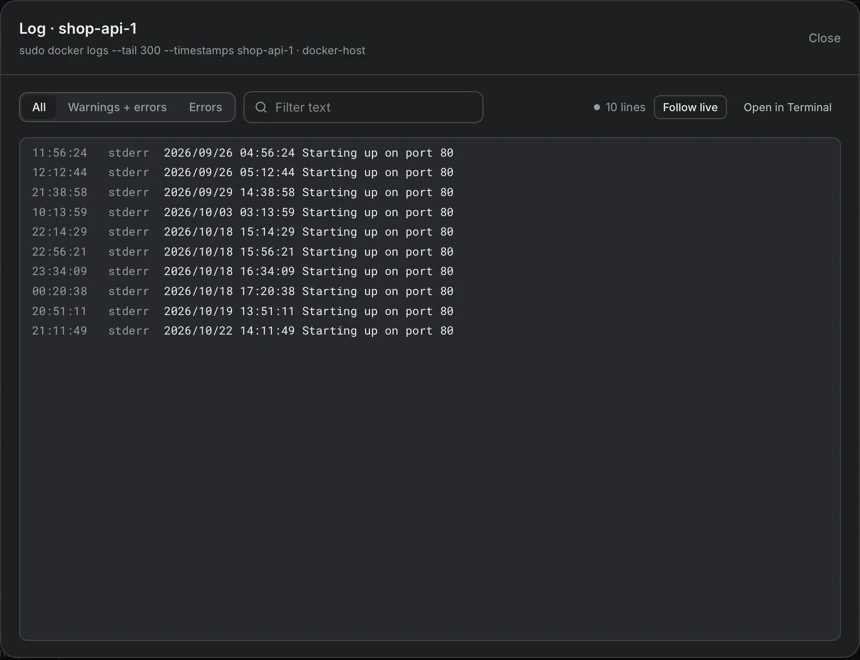
The viewer shows the last 300 lines with timestamps. The filters narrow the lines to warnings and errors or to errors, and the text filter matches any text. Follow live streams new lines while the container runs, and Open in Terminal continues in a terminal. For a container that is not running, only the old logs are available.
When Docker cannot be read
Section titled “When Docker cannot be read”- Docker is not installed. The page says so and shows the official installation script.
- The user is not in the
dockergroup. The page explains that/var/run/docker.sockcannot be read and offers to use the root connection. Turning on sudo also works. - The daemon is not running. The page offers to start
docker.service. Containers with the restart policyalwaysorunless-stoppedstart with it.