Sudo
Many reads and changes need root: the firewall, the processes of other users, Docker for users outside the docker group, the nginx configuration and system logs. When a session is signed in as a regular user, sudo gives access to them without signing in as root.
Turn on sudo
Section titled “Turn on sudo”-
Open the Overview of the session and select Use sudo for this session in the notice at the top, or use the same action wherever a screen reports that it needs sudo.
-
Enter the sudo password of the user. Leave the field empty when sudo does not ask for a password (
NOPASSWD).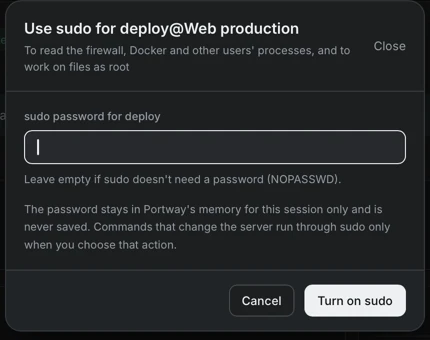
Figure 1. The sudo dialog. -
Select Turn on sudo.
Portway first tries sudo -n true, which succeeds when no password is needed. Otherwise it validates the password with sudo -S -k -p ''. A wrong password or a user that is not allowed to use sudo is reported with the reason.
How the password is handled
Section titled “How the password is handled”- The password stays in the memory of Portway for this session only and is not saved.
- It is passed to
sudothrough standard input, so it does not appear in a command line, in the audit log or in the debug log. - When the session ends, the password is gone.
What changes while sudo is on
Section titled “What changes while sudo is on”Commands that need elevated rights run through sudo, and only when an action requires it. The dialog of such an action states Sudo and shows the exact command, which starts with sudo. Reads that do not need elevated rights still run as the user.
Files are a separate decision. Turning on sudo does not make file operations run as root. A root access switch in the Files screen does that, because files that are created as root belong to root.
Turn it off
Section titled “Turn it off”Turn off sudo ends the mode. It runs sudo -k, which discards the cached credential, and the action is written to the audit log. Disconnecting the session also ends it.