Tunnel monitor
Select a tunnel row, or Traffic and connections in its menu, to open the monitor. It answers three questions: how much data passes, how healthy the SSH connection is, and which application is behind each connection.
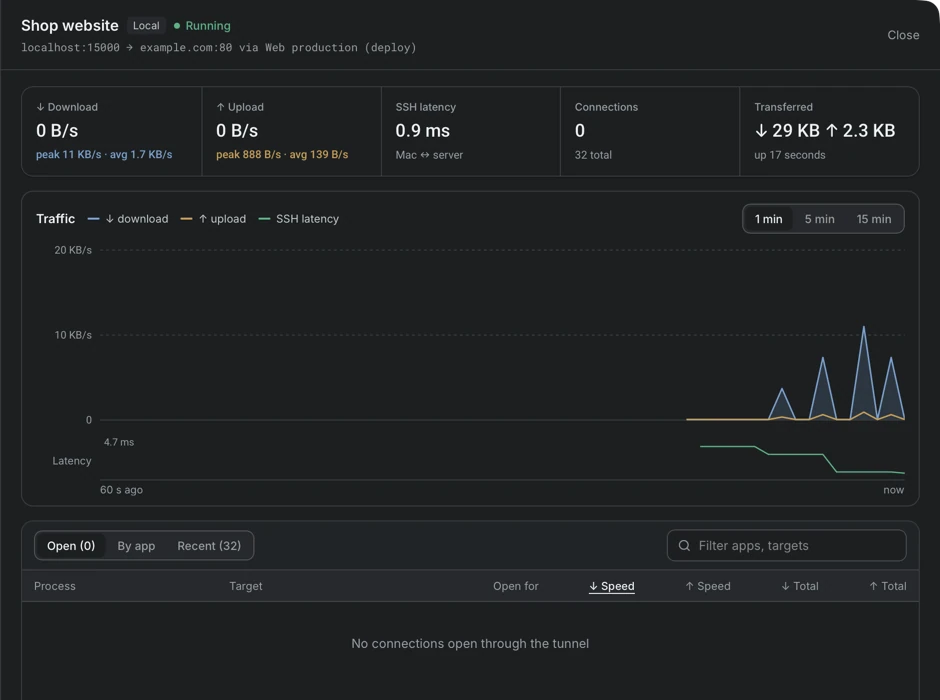
The figures
Section titled “The figures”| Figure | Meaning |
|---|---|
| Download | The current speed from the server, with the peak and the average |
| Upload | The current speed to the server, with the peak and the average |
| SSH latency | The round trip time between this computer and the server |
| Connections | The number of open connections, the total, and how many times the tunnel reconnected |
| Transferred | The amount of data in both directions since the tunnel started |
The chart
Section titled “The chart”The chart shows download, upload and SSH latency over the last 1, 5 or 15 minutes. Choose the span with the buttons above the chart. The upper part shows the speeds, and the lower part shows the latency.
The connections
Section titled “The connections”Three tabs list the connections.
- Open lists the connections that are open now, with the application and its process number, the target, how long the connection is open, the speeds and the totals.
- By app groups the connections by application.
- Recent lists the connections that were closed recently, with the time of closing, the duration and the totals, and it counts the ones that failed. The statistics cover the open connections and the last 100 closed ones.
For a Local tunnel, the application is the program on this computer that opened the connection, for example a database client or a browser. Portway finds it with lsof on macOS and with the TCP connection table on Windows. When a connection closes before it can be identified, the entry reads Unknown process. Connections that come from other devices of the network are labeled another machine on the network. For a Remote tunnel the connections come from the server.
Each row also shows how long it took to open the SSH channel for the connection, and connections that failed show the reason. The filter field narrows the list by application or target.