Interface tour
This page describes the layout of the window, so that the pages about individual features can refer to places by name.
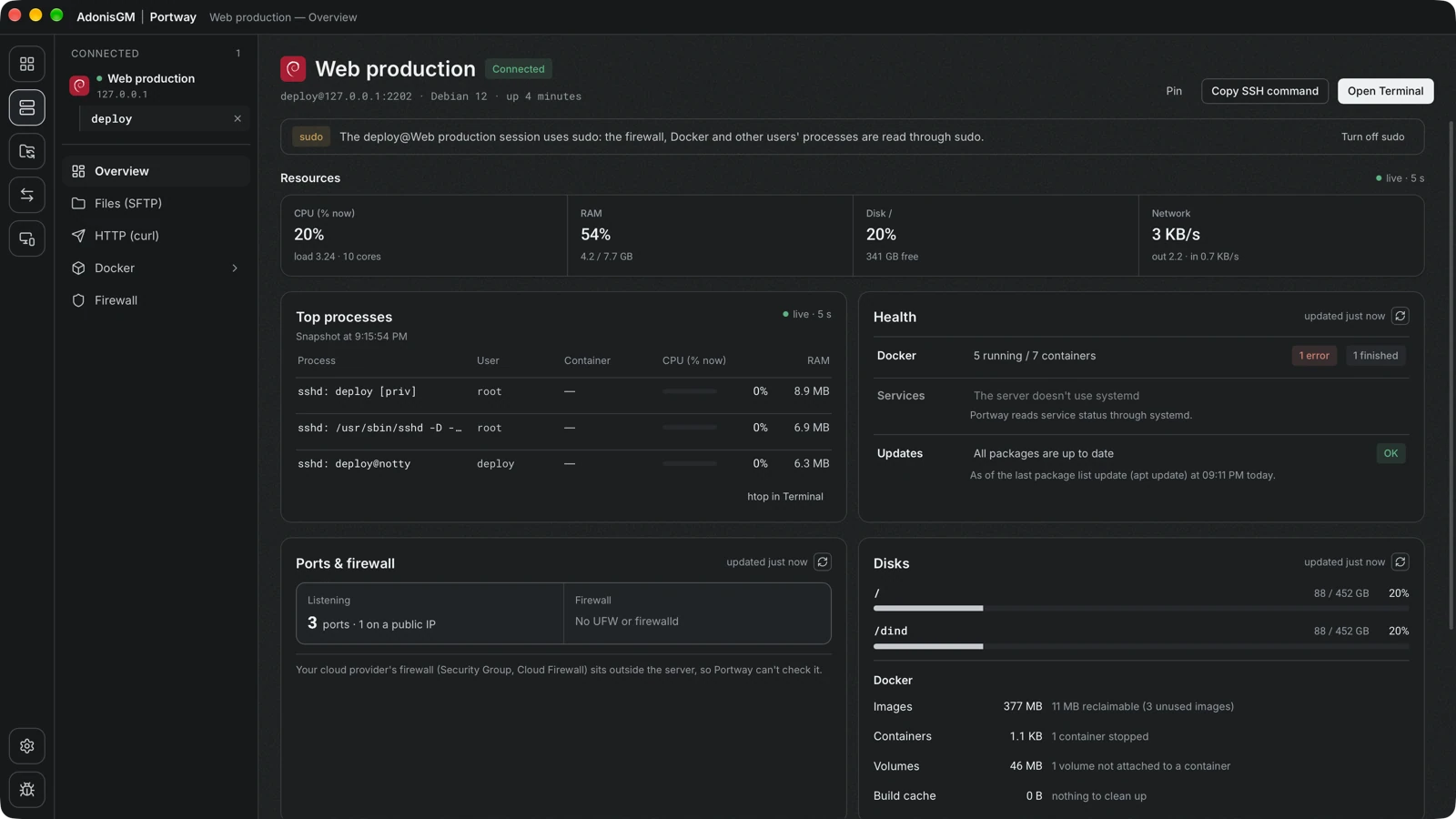
The icon rail
Section titled “The icon rail”The narrow column on the left switches between the main areas.
| Icon | Area | Content |
|---|---|---|
| Grid | Connections | The server list and the SSH keys |
| Server | Connected servers | The servers that currently have an open session |
| Folders | Transfer | The two-pane copy screen |
| Arrows | Tunnel | Tunnel profiles and their monitor |
| Computer | Connect | Pairing and links between two of your own computers |
| Gear | Settings | Preferences |
| Bug | Debug log | A separate window that lists every command, SFTP call and transfer |
A small badge on an icon shows how many items are active, for example how many tunnels are running.
The second column
Section titled “The second column”The column next to the rail changes with the area.
- Under Connections, it lists the server list and the SSH keys.
- Under a connected server, it lists the sessions of that server, one row for each user, and below them the sections that the server offers.
The sections of a server depend on what exists on it. A server without Nginx has no Nginx section, and a server without systemd has no Services section. The possible sections are Overview, Files (SFTP), Nginx, HTTP (curl), Services, Docker and Firewall.
The server header
Section titled “The server header”Every server screen starts with the name of the server, its connection state, the user, the address, the detected operating system and the uptime. Three actions are always available.
- Pin keeps the server at the top of the list.
- Copy SSH command copies the
sshcommand that corresponds to the session. - Open Terminal opens the terminal of the computer with that command.
Docks at the bottom
Section titled “Docks at the bottom”Two panels appear above the bottom edge of the window when they are needed.
- Editing on this Mac lists files that are being edited in a local application, with their upload status. See Edit files locally.
- Transfer queue shows uploads, downloads and copies with progress and speed. See Transfer.
The title bar
Section titled “The title bar”The title bar shows the name of the application and the screen that is open, which states the server name followed by the screen. The window follows the theme that is chosen in Settings.