Docker images and volumes
Images and volumes use disk space silently. The Images and Volumes pages show what is used by which container, and what can be removed.
Images
Section titled “Images”The Images page lists every image with its identifier, size, creation date and use. The use column states which containers use an image, or marks it as unused or dangling. A dangling image has no tag. It is usually an old build that a new one has overwritten, and no container uses it. The footer states the total size, the part that is dangling and the part that is unused.
Prune images
Section titled “Prune images”Prune images opens a dialog with two choices.
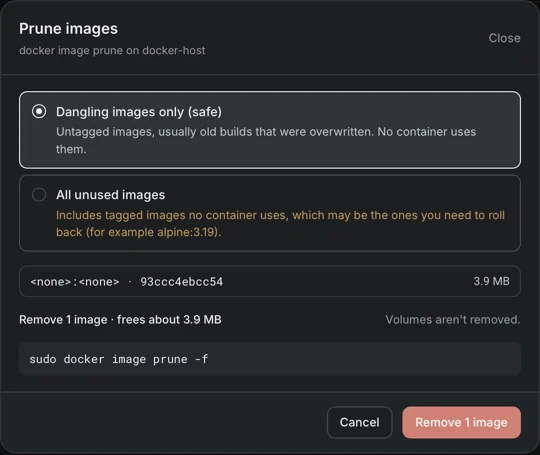
| Choice | Effect |
|---|---|
| Dangling images only (safe) | Removes untagged images that no container uses |
| All unused images | Also removes tagged images that no container uses. These can be the images that are needed to roll back, so the dialog warns about it |
The dialog lists the images that would be removed, the space that would be reclaimed and the exact command. Volumes are not removed.
Volumes
Section titled “Volumes”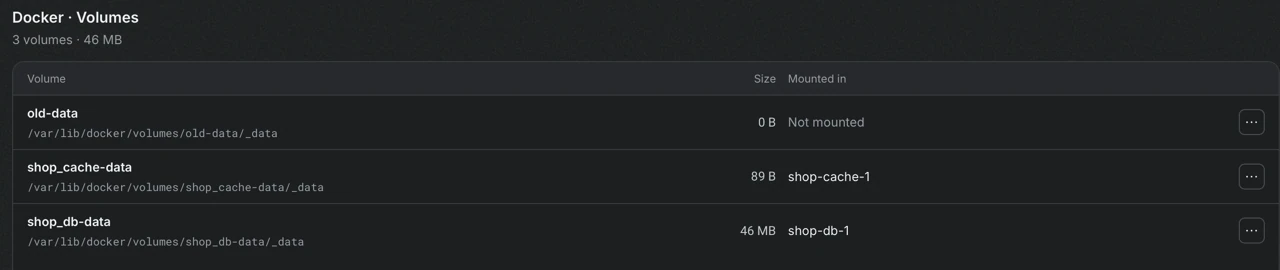
The Volumes page lists the volumes with their path on the server, their size and the container that mounts them. Sizes are calculated on the server and can take a few seconds. A volume that is mounted nowhere is shown as Not mounted.
The menu of a volume copies its path or removes it. The page itself is read-only.
Remove a volume
Section titled “Remove a volume”Removing a volume deletes all of its data permanently. The dialog states the size of the data, says that it cannot be undone, and requires typing the name of the volume. A volume that is mounted in a container cannot be removed. The dialog names the container, and the container must be stopped and removed first.