Manage servers
The server list is the starting point of Portway. It holds every saved connection. Adding the first server is described in Add a server and connect. This page covers the daily management of the list.
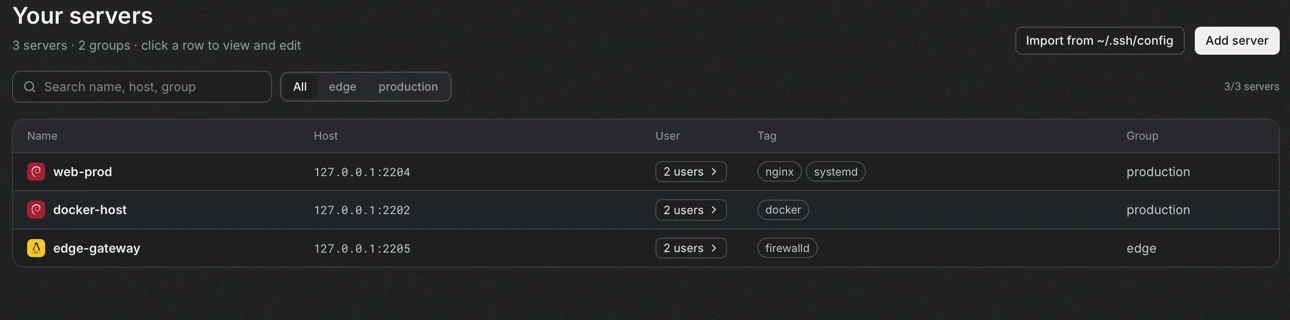
Reading the list
Section titled “Reading the list”| Column | Content |
|---|---|
| Name | The display name, with the operating system icon after the first connection |
| Host | The host and port. A jump host is shown as via and the name of that server |
| User | The number of accounts, or the user name when there is one account. Selecting it lists the accounts |
| Tag | Labels that are used for searching |
| Group | The group of the server, used for filtering |
A pin mark at the end of the row shows that the server is pinned.
Find a server
Section titled “Find a server”The search field filters by name, host, group and tags. The chips above the table filter by group, and All shows every server. The counter on the right shows how many servers match.
Connect
Section titled “Connect”Select the user button of a row. The row expands and lists the accounts, each with its sign-in method and a Connect button. Several accounts of the same server can be connected at the same time, and each one appears as its own session in the second column.
Edit or remove a server
Section titled “Edit or remove a server”Select a row, apart from the user button, to open the connection form. The form is the same as the one used for adding a server. Editing changes only the information that is saved on this computer, and nothing changes on the server.
The form has a button to remove the server. Removing deletes only the connection details that are stored on this computer. The server and its data are not affected.
Pin a server
Section titled “Pin a server”Pin in the header of a connected server keeps the server at the top of the list.
Import from ~/.ssh/config
Section titled “Import from ~/.ssh/config”Import from ~/.ssh/config reads the file and adds the hosts that are not in Portway yet. The reader understands Host blocks with HostName, User, Port, IdentityFile and ProxyJump, the values of a Host * block as defaults, and Include. Wildcard hosts and Match blocks are skipped because they do not name a single server. After the import, a message states how many servers were added, or that all hosts were already present.
Export and import the whole list
Section titled “Export and import the whole list”Settings has Export to file and Import from file under Data. The exported JSON file contains host, port, user, group, tags, notes and key paths. Passwords and passphrases stay in the Keychain of the original computer, so they must be entered again on another computer. During an import, servers whose names already exist are skipped, and the message lists them.
Related pages
Section titled “Related pages”- Jump hosts for servers that are reachable only through another server.
- SSH keys for creating and managing keys.