Browse and manage files
The Files (SFTP) section of a server is a file manager for the server. It works as the user of the session. Permissions and root access explains what that user may do, and how to work as root.
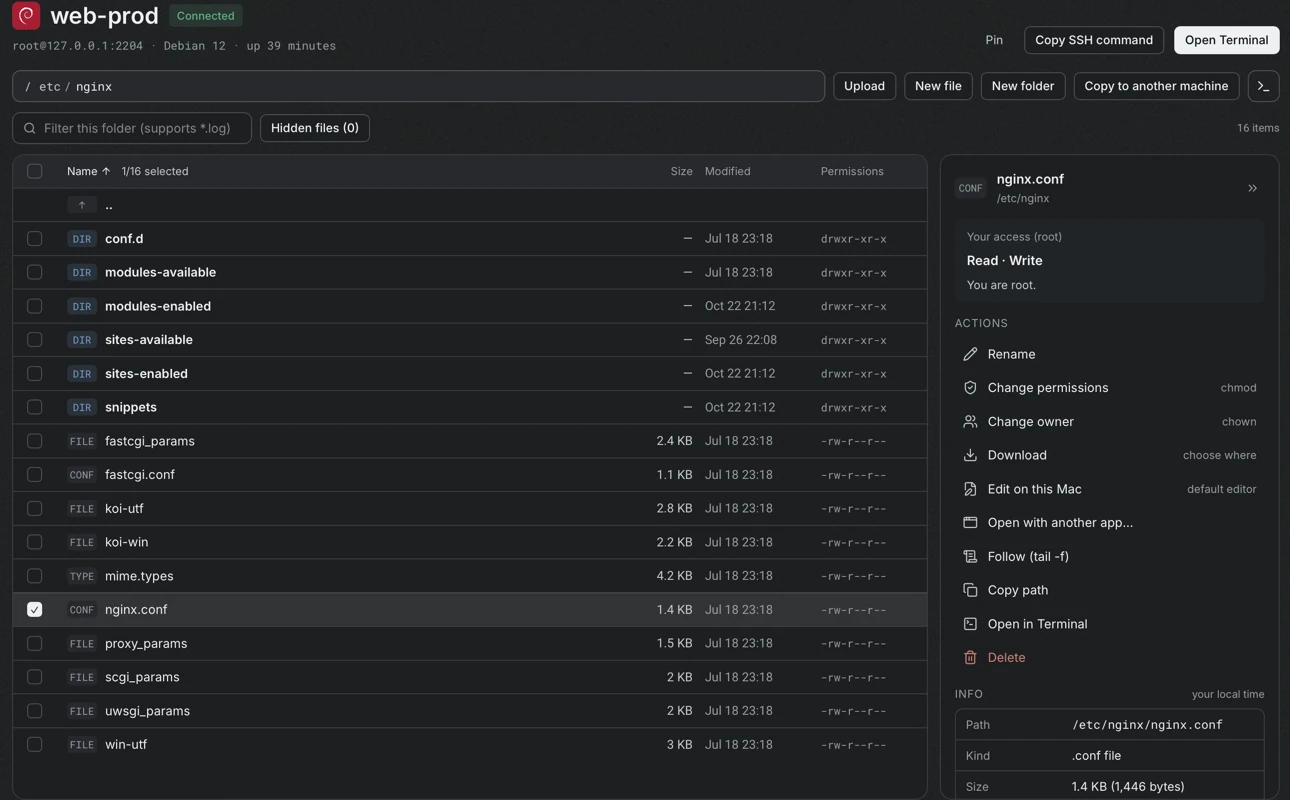
The path bar and the toolbar
Section titled “The path bar and the toolbar”- The path bar shows the current folder as clickable parts. Select an empty spot in it to type a path, and press Enter to go there.
- Upload, New file and New folder act on the current folder.
- Copy to another machine opens the Transfer screen with this folder on the left.
- The last button opens this folder in a terminal.
- The filter field narrows the list by name and supports patterns such as
*.log. - The Hidden files button shows or hides dot files and states how many exist in the folder.
Select items
Section titled “Select items”Click an item to select it. Hold Ctrl (⌘ on macOS) and click to add to the selection, hold Shift and click to select a range, and use the checkbox in the header to select all items. The header shows how many items are selected. Double-click a folder to open it, or a file to edit it in a local application.
The side panel
Section titled “The side panel”The panel on the right describes the selection.
- Your access states what the user may do with the item, calculated from the owner, the group and the mode.
- Actions lists what can be done: rename, change permissions, change owner, download, edit on this computer, open with another application, follow (
tail -f), copy the path, open in a terminal and delete. - Info shows the path, the kind, the size, the owner and the times. For a symbolic link it shows the target and whether the link is broken, and for a folder it can count the items and the total size.
Upload
Section titled “Upload”Drag files or folders from the file manager of the computer onto the list, or use Upload. The title of the drop area states the destination folder. When items with the same names already exist, a dialog offers Skip duplicates or Replace. Replacing overwrites the files on the server, and folders with the same name are merged, which means that matching files inside are overwritten as well.
Large copies are tracked in the transfer queue.
Download
Section titled “Download”Select items and choose Download. By default Portway asks where to save each download. This can be changed to saving directly into a default folder, as described in Settings. Names that already exist get a suffix such as (1).
Create, rename, change permissions and owner
Section titled “Create, rename, change permissions and owner”| Action | Details |
|---|---|
| New file, New folder | Names may not be empty, contain / or be . or .. |
| Rename | Works on one item at a time and needs write permission on the folder |
| Change permissions | Shows the mode in numeric form and as checkboxes. A folder can apply the change to everything inside it (-R). Only the owner or root can change permissions |
| Change owner | Only root can do this. Turn on sudo for the session, or connect as root |
Dialogs show the equivalent command before it runs.
Delete
Section titled “Delete”Delete asks for confirmation and states that it cannot be undone. A folder is deleted together with everything in it, and for a symbolic link only the link itself is deleted.