Transfer between computers and servers
The Transfer screen copies files between two places. Each of the two panes shows either this computer or a server account, so the same screen covers uploads, downloads and server-to-server copies.
Set up the panes
Section titled “Set up the panes”- Open Transfer from the icon rail.
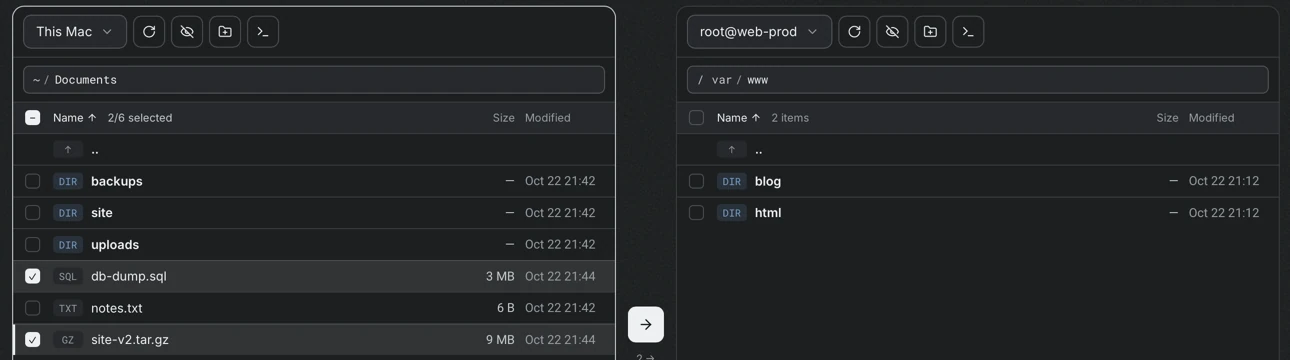
- In the source menu at the top of a pane, choose This Mac (This PC on Windows) or one of the accounts, for example
root@web-prod. A server must be connected before it can be chosen. - Use the path bar of each pane to go to a folder. Select an empty spot and type a path.
Each pane has a refresh button, a button that shows or hides hidden files, a button that creates a folder and a button that opens the folder in a terminal. Swap sides exchanges the two panes.
Select items in one pane and use the arrow between the panes. The arrows show how many items are selected. Dragging the selection onto the other pane does the same, and the keyboard shortcuts are listed at the bottom of the screen.
| Shortcut | Action |
|---|---|
Tab |
Switch pane |
↑ ↓ |
Move; with Shift, select a range |
Space |
Select |
Enter |
Open the folder |
Backspace |
Go to the parent folder |
⌘A |
Select all |
⌘→ ⌘← |
Copy to the other side |
Folders are copied recursively. When both panes show the same folder, or when the destination is not writable, the arrow is disabled and a note gives the reason.
Copy between two servers
Section titled “Copy between two servers”When both panes show servers, Portway reads the file from one server and writes it to the other through this computer. No temporary file is stored, and the speed depends on the connection of this computer to both servers. The panes state this, because the two servers do not connect to each other.
Name conflicts
Section titled “Name conflicts”Items that already exist at the destination are marked with same name. When a copy would overwrite them, a dialog compares the copies by size and time.
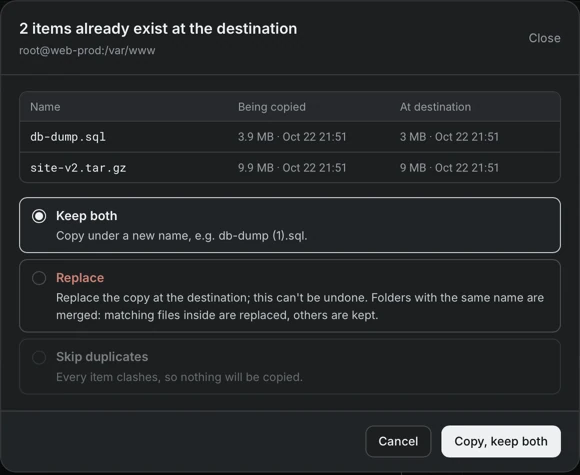
- Keep both copies under a new name, for example
db-dump (1).sql. - Replace replaces the copy at the destination and cannot be undone. Folders with the same name are merged: matching files inside are replaced and the others are kept.
- Skip duplicates copies only the items that do not clash. It is unavailable when every item clashes.
A file and a folder with the same name are of different kinds, so both are kept.
The transfer queue
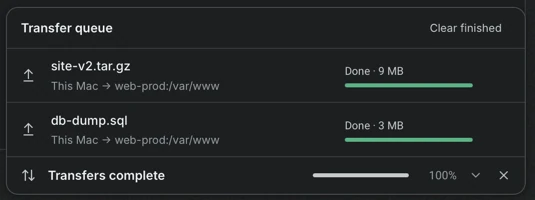
Section titled “The transfer queue”Every transfer appears in the queue at the bottom of the window with its source, destination, progress, size and speed. The queue states when everything is complete and how many items failed or were skipped, for example links and special files. Clear finished empties the finished rows, and a finished transfer on this computer can be shown in the file manager.