Add a server and connect
This page describes how to add a Linux server to Portway and open the first connection. Portway connects over SSH, so the server only needs a running OpenSSH service and an account that can sign in.
Before starting
Section titled “Before starting”Prepare the following information:
- The IP address or the domain name of the server.
- The SSH port. The default is
22. - The name of the account used to sign in.
- A sign-in method for that account: an SSH key available on this computer, or a password.
Add the server
Section titled “Add the server”-
Open the server list.
Select Connections in the left sidebar and then Server list. A new installation shows an empty list.

Figure 1. The empty server list. -
Open the Add server form.
Select Add server in the upper right corner. To reuse hosts that are already configured for the
sshcommand, select Import from ~/.ssh/config instead; Portway then reads the file, includingProxyJumpsettings. -
Fill in the connection details.
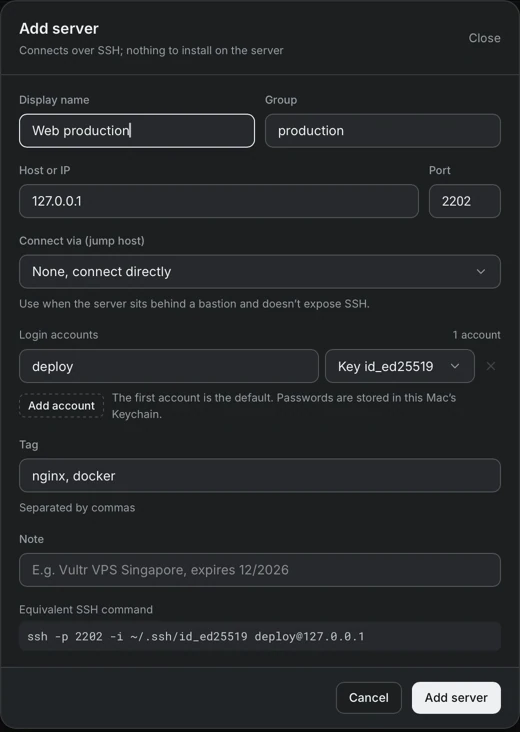
Figure 2. The Add server form with sample values. Field Description Display name The name shown in the application. Required. Group An optional label that groups servers in the list, for example production.Host or IP The IP address or the domain name of the server. Required. Port The SSH port, from 1 to 65535. Connect via (jump host) An already saved server that is used as a bastion. Leave it as None, connect directly unless the server is only reachable through a bastion. Login accounts One or more accounts. Each account has a user name and a sign-in method: an SSH key found in ~/.ssh, or a password. The first account is the default one.Tag and Note Optional text used for searching and for reminders. Tags are separated by commas. The Equivalent SSH command at the bottom of the form shows the
sshcommand that corresponds to the current values. It can be used to confirm that the values are entered as intended. -
Save the server.
Select Add server. The server appears in the list with its host, user, tags and group. The operating system is detected on the first connection, so it is not entered manually.

Figure 3. The server list after the server is added.
Connect for the first time
Section titled “Connect for the first time”-
Select the account.
In the row of the server, select the user button (here
deploy). The row expands and lists the accounts of the server with their sign-in methods.
Figure 4. The expanded row with the Connect button. -
Select Connect.
Portway opens an SSH connection to the server.
-
Verify the host key.
When this computer has never connected to the server, Portway asks for confirmation of the host key before it signs in.
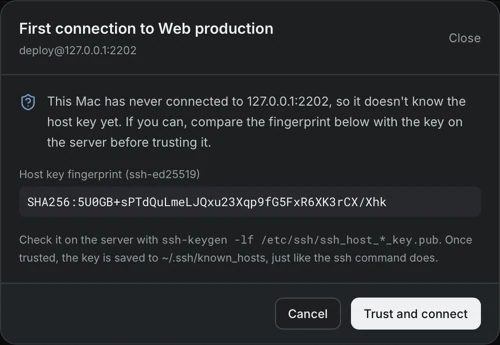
Figure 5. The host key confirmation on the first connection. Compare the fingerprint in the dialog with the key on the server. The command
ssh-keygen -lf /etc/ssh/ssh_host_*_key.pub, run on the server, prints the fingerprints of its host keys. When they match, select Trust and connect. The key is then saved to~/.ssh/known_hosts, in the same way as thesshcommand does, and the confirmation is not requested again for this server. -
Open the server overview.
After the connection is established, the overview of the server is displayed.
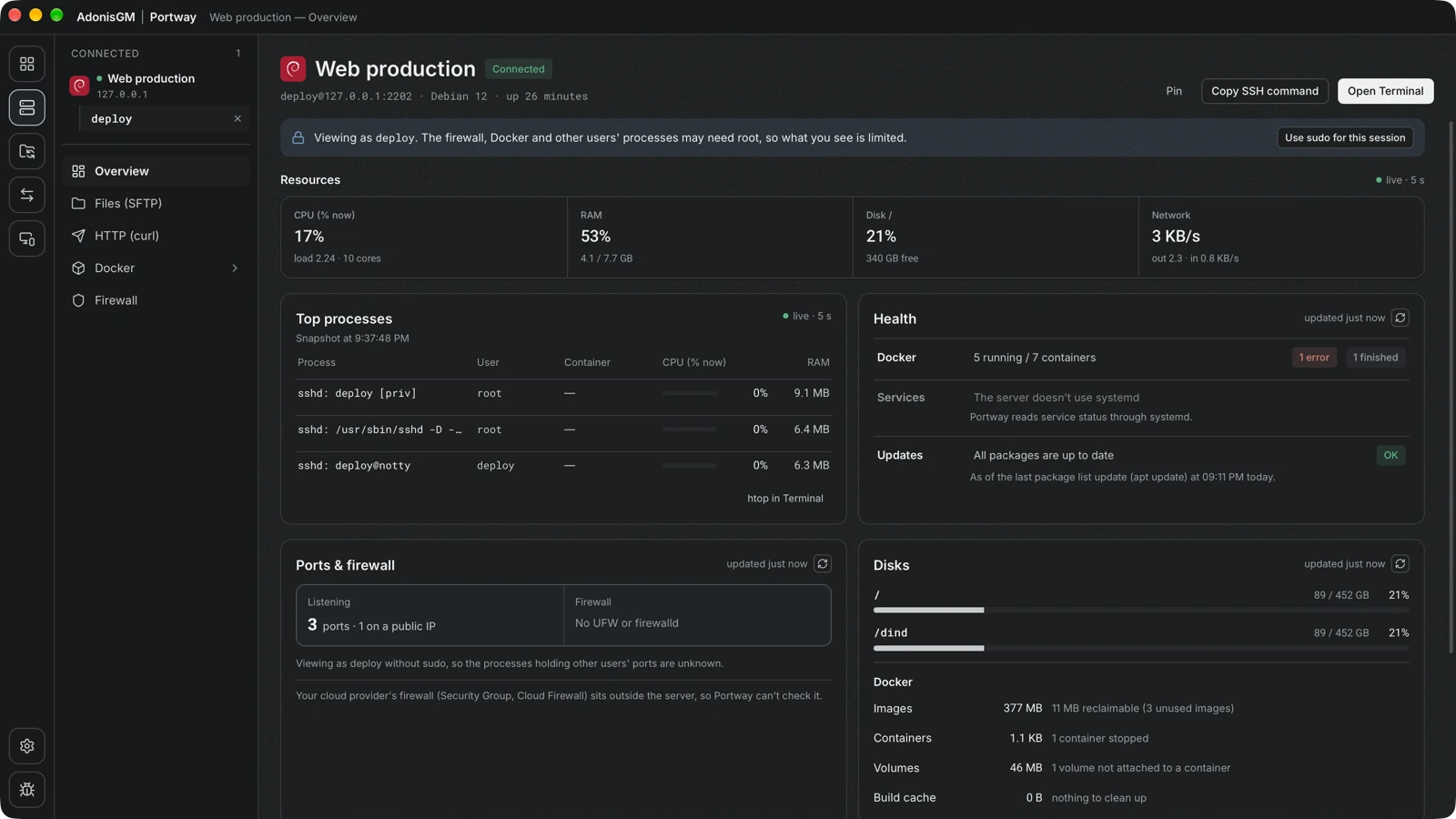
Figure 6. The overview of a connected server. Select the image to enlarge it.
Reading the overview
Section titled “Reading the overview”| Section | Content |
|---|---|
| Resources | CPU, memory, disk and network usage, refreshed every few seconds. |
| Top processes | The processes that use the most resources, with the container they belong to when they run in Docker. |
| Health | The state of Docker containers, system services and pending package updates. |
| Ports & firewall | The ports that are listening, which of them are reachable from a public address, and the state of the firewall. |
| Disks | The usage of each mounted disk and of the space taken by Docker images, containers and volumes. |