Server overview
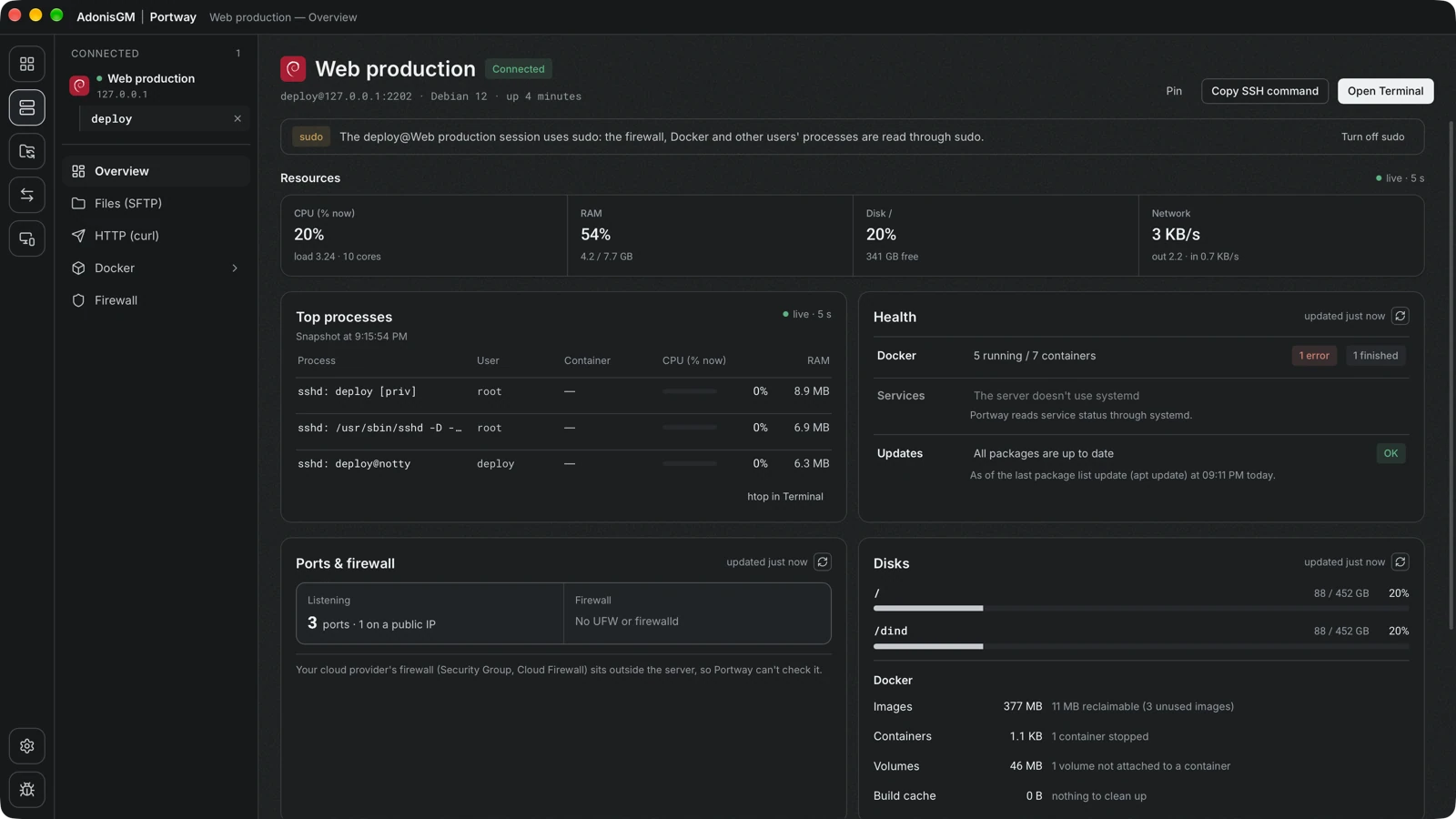
The Overview is the first screen that opens for a connected server. It answers the question whether the server is healthy and points to what needs attention.
Resources
Section titled “Resources”Four tiles show the current state.
| Tile | Content |
|---|---|
| CPU (% now) | The load of the processors, with the load average and the number of cores |
| RAM | The percentage in use, with the used and total amounts |
| Disk / | The percentage of the root file system in use, and the free space |
| Network | The current traffic in both directions |
The section refreshes every few seconds while the screen is open, and the label live shows this. CPU and network values are rates that are calculated from the difference between two readings.
Top processes
Section titled “Top processes”The table lists the processes that use the most resources, with the user, the Docker container that owns the process when there is one, the CPU use and the memory. A line under the title shows the time of the snapshot. htop in Terminal opens a terminal on the server with htop.
Health
Section titled “Health”| Row | Content |
|---|---|
| Docker | How many containers run out of the total, with markers for errors and finished jobs. The row states when Docker is not installed |
| Services | The number of systemd service units and how many are in the failed state. The row states when the server does not use systemd |
| Updates | The number of packages with updates and how many are security updates. The count is as of the last package list update, and the time of that update is shown |
Updates are read from apt on Debian and Ubuntu and from apk on Alpine. On other distributions the row states that the distribution is not supported yet.
Ports and firewall
Section titled “Ports and firewall”The section shows how many ports are listening and how many of them are on a public address, together with the state of the firewall. Warnings appear when a well-known service such as a database listens on a public address, or when a Docker port bypasses the firewall. Firewall explains these findings. The section also reminds that a firewall of the cloud provider, such as a security group, lies outside the server and cannot be checked.
Every mounted file system appears with its use. When Docker is present, a second block shows the size of images, containers, volumes and the build cache, with the amount that can be reclaimed. Calculating Docker sizes can take several seconds.
Actions via Portway
Section titled “Actions via Portway”The last section lists the actions that Portway performed on this server. It is described in Audit log.
When the user is not root
Section titled “When the user is not root”A session that is signed in as a regular user shows a notice at the top. The firewall, Docker and the processes of other users may need root, so part of the information is limited.

Use sudo for this session removes the limitation. See Sudo.