Create tunnels
A tunnel carries network traffic through an SSH connection. Typical uses are reaching a database that listens only on the server, opening an internal dashboard in the browser, or sending the traffic of an application through the server.
| Type | Equivalent | What it does |
|---|---|---|
| Local | ssh -L |
Opens a port on this computer. Connections to it are forwarded to a host and port as seen from the server |
| SOCKS | ssh -D |
Opens a SOCKS5 proxy on this computer. Every connection through the proxy leaves from the server |
| Remote | ssh -R |
The server opens a port, on its own localhost only. Connections to it are forwarded to a host and port on this computer |
The Remote type is under Advanced (remote forward) in the form.
Create a tunnel
Section titled “Create a tunnel”-
Open Tunnel from the icon rail and select New tunnel.
-
Enter a name and choose the type.
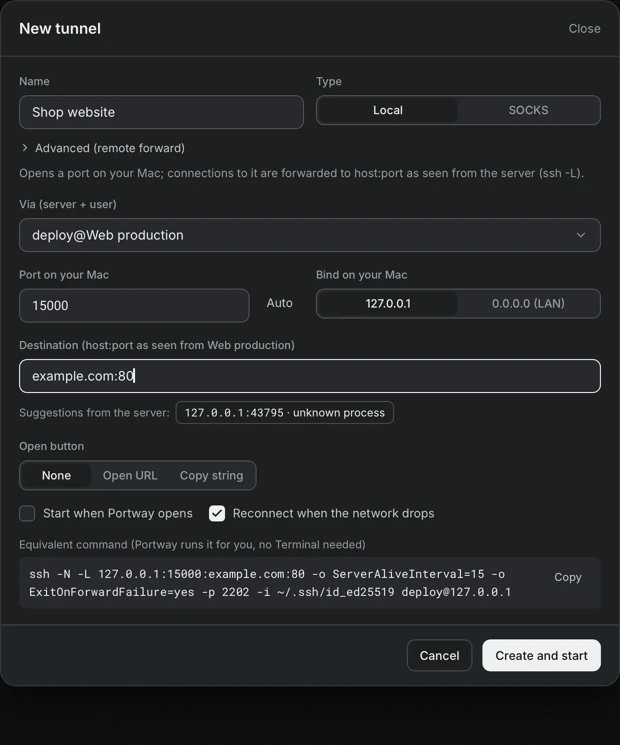
Figure 1. The New tunnel dialog. -
Choose Via (server + user), which is the account whose session carries the tunnel.
-
Set the ports.
- Port on your Mac: a number, or Auto to let Portway choose. Ports below 1024 need administrator rights on this computer.
- Destination, which the form labels with the name of the server, for example
host:port as seen from web-prod. A value is, for example,127.0.0.1:5432. When the server is connected, a list of suggestions shows the ports that listen on it, and selecting one fills the field.
-
Optionally choose the Open button: None, Open URL, or Copy string. It adds a button to the tunnel row that opens the address in the browser or copies a connection string, for example for a database client.
-
Choose the options and select Create and start.
Options
Section titled “Options”- Start when Portway opens starts the tunnel together with the application.
- Reconnect when the network drops reconnects automatically. The row then shows the attempt number, the reason and the time of the next attempt.
- Bind on your Mac is
127.0.0.1by default. The choice 0.0.0.0 (LAN) lets other devices on the same network use the tunnel. This is stated in the form, because anyone on that network can then reach the destination.
SOCKS on the network
Section titled “SOCKS on the network”A SOCKS tunnel that is bound to the local network always requires a sign-in. Portway creates the user portway and a random password, and stores them in the Keychain. The menu of the tunnel has an action that copies the user and the password, so that they can be entered in the application that uses the proxy.
Run and stop
Section titled “Run and stop”A switch on each tunnel row starts and stops it. Each tunnel has its own SSH connection and keeps running when the server tab is closed. Tunnels stop when Portway quits. A tunnel can start by itself only when its password or passphrase is saved in the Keychain, or when the server is already connected.
The menu of a tunnel offers Edit, Duplicate, Copy ssh command and Delete. The row shows the state, the uptime, the number of connections and the amount of data. Selecting the row opens the monitor.
Common errors
Section titled “Common errors”| Message | Meaning |
|---|---|
| Port is in use on your computer | Another program, or another tunnel, already uses the port |
| Needs the key passphrase or the password | Connect to the server once and choose to save the secret in the Keychain |
| Host key not trusted yet | Connect to the server once, so that the host key can be confirmed |
| The server did not allow opening the port | The sshd configuration restricts forwarding |
| Lost connection to the server | The network dropped; the tunnel reconnects when that option is on |