SSH keys
The SSH keys screen lists the key pairs that are stored in ~/.ssh on this computer. Open it from the Connections area, next to the server list.
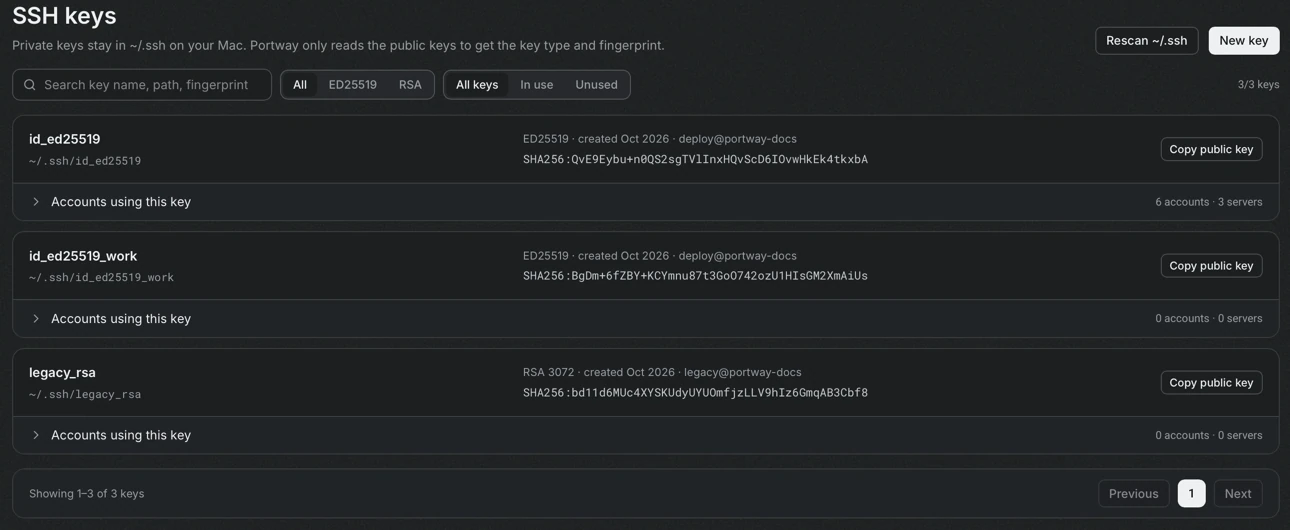
Private keys stay in ~/.ssh. Portway reads only the public keys to obtain the type and the fingerprint, and it writes a private key only when it generates one.
Reading the list
Section titled “Reading the list”Each key shows its name and path, its type (for example ED25519 or RSA 3072), the creation month, the comment and the SHA256 fingerprint. The line below the key shows how many accounts and servers use it. Select Accounts using this key to list them. A key whose file is missing is flagged, because servers that use it cannot sign in.
The filters above the list narrow it by type and by use: all keys, keys in use and unused keys. The search field matches the name, the path and the fingerprint. Rescan ~/.ssh reads the folder again after keys were added outside Portway.
Create a key
Section titled “Create a key”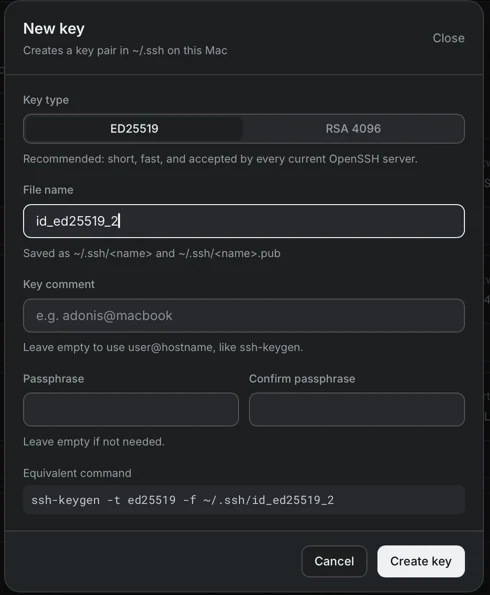
- Select New key.
- Choose the type. ED25519 is recommended: it is short, fast and accepted by every current OpenSSH server. RSA 4096 is for older servers that do not accept ED25519.
- Enter a file name. The pair is saved as
~/.ssh/<name>and~/.ssh/<name>.pub. A name may contain only letters without accents, digits, dots, underscores and hyphens, and it cannot start with a dot or match an existing file. - Optionally enter a comment. When it is empty,
user@hostnameis used, as withssh-keygen. - Optionally enter a passphrase twice.
- Check the Equivalent command and select Create key.
Authorize a key on a server
Section titled “Authorize a key on a server”Copy public key copies the public key. Paste it as a new line into ~/.ssh/authorized_keys of the user on the server. After that, an account of that server can use the key as its sign-in method.
Keys with a passphrase
Section titled “Keys with a passphrase”When a key is protected by a passphrase, Portway asks for it at connection time. Selecting Save in this Mac’s Keychain stores it, so that the question is not repeated. On Windows the passphrase is stored in Credential Manager.